Windows subsystem for Linux or WSL enables you to use Linux on your windows machine, without having a need for a separate Linux system or having to setup dual boot on your windows machine. The WSL is nearly a complete Linux environment which enables users to run commands, tools and opensource applications.
WSL can be enabled in different ways however, here we will see the easiest way how to enable WSL2 using PowerShell
- Go to Control Panel>Programs and Features>Turn Windows features on or off
- Enable the components shown below

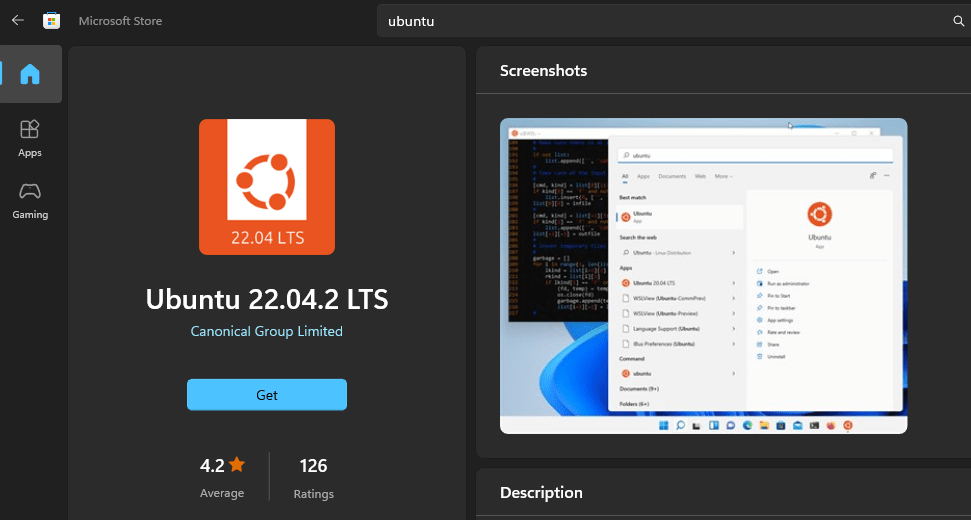
- Open Microsoft Market Place
- Search for Ubuntu
- Select the latest version and press “Get” Button
- Open “Terminal>New Ubuntu <version>”
- Linux will install and ask to setup a username and password
- Set a username and password (this username and password can be different from Windows login)
- Setup is complete and you are now ready to use Linux on Windows.

- You may get Kernel update error if the kernel is not updated

Download and run the kernel update utility. Download here
 FactorBytes